Find a chapter by number
Type the chapter number instead of scrolling the list. On a serial with thousands of chapters this is the short way.
Chapter list, hold Select.
Scroll down
A Button controls
A tap and a hold are two different actions. The same button also does different things depending on which screen is open, so each context is spelled out below.
On the device, the Up and Down buttons on the front are drawn as up and down arrows, and the two side buttons as left and right arrows. This page uses the same set of glyphs.
Tap a side button
Holdoron either side
Tap Up and Down
The cursor moves one row at a time through the open list. On a screen with tabs the cursor ring also passes through the tab bar, so a tab is always one press away.
Holdor
HoldSelect
On a book, a folder or a settings entry that supports it: pin it to the Favourites tab. Hold again to unpin.
The chapter list is the exception. There, holding Select opens the chapter number entry.
HoldBack
The device also shows a hint line at the bottom of each screen for that screen's own actions, so there is nothing to memorise.
B Read your way
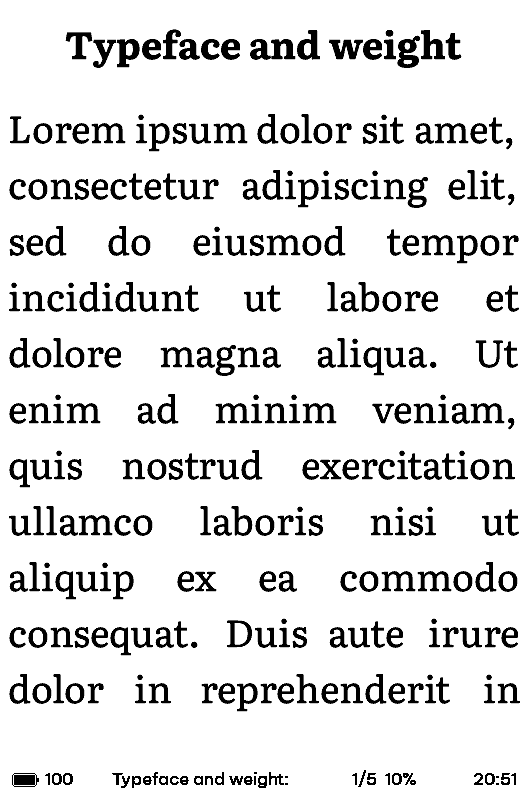
Size, weight and spacing are all set on the device, from the reading menu. You see each change as you make it.
Loading a TTF or OTF file directly, and the ink weights, are still experimental. The prebuilt fonts in the download pack are stable; a font you load yourself may come out looking wrong, depending on the file.
C Turn it on, keep reading
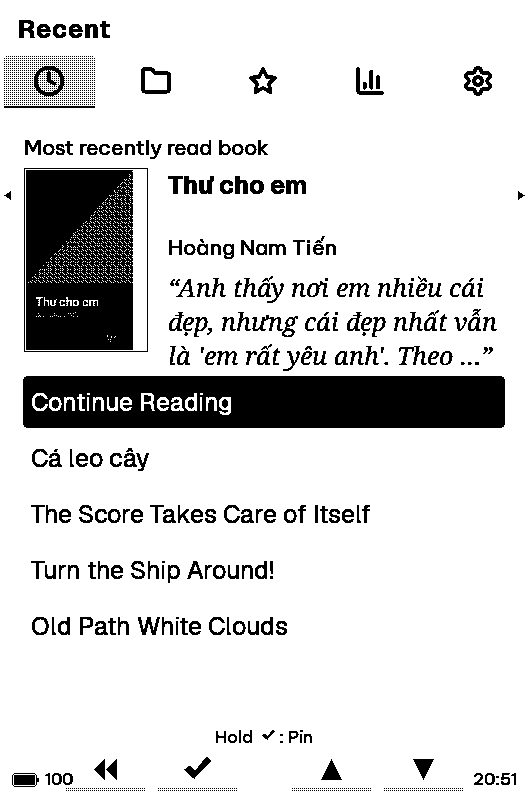
A normal start opens home with the cursor already on Continue reading. One press of Select and you are back on the page you left.
D What else is there
Type the chapter number instead of scrolling the list. On a serial with thousands of chapters this is the short way.
Chapter list, hold Select.
One tab shared by books, folders and the settings you open often. Once pinned, they can be reordered.
Hold Select on the item you want.
Overall figures, per-book figures, and reading badges drawn from your actual habits, each with its reasoning shown.
The Stats tab on home.
It follows the KOReader protocol, so it works alongside other devices and the KOReader app. Tenor runs a server at kosync.tenor.vn.
Settings, KOReader sync.
Copy books and fonts across from a browser, without taking the card out. The device shows a temporary username and password to enter.
Settings, file transfer.
The device finds new releases and downloads them from cross.tenor.vn, checking the certificate and the hash before it writes.
Settings, firmware update.
Choose what shows while the device sleeps, including tenor/cross artwork and the cover of the book you are reading. There is a builder for your own image on this site.
Settings, sleep screen.
Pair a Bluetooth HID page-turner remote and turn pages without touching the reader. Since v1.0.4 it starts straight from Settings and keeps running while a book is open. Only HID devices are listed; a keyboard that speaks Bluetooth Classic only will not appear.
Settings, Device, Bluetooth page turner.
The firmware interface comes in Vietnamese, English and Simplified Chinese. A file transfer page in all three is planned for v1.0.3.
Settings, language.
v1.0.4 was verified on X3 hardware and on the X3 and X4 simulators. X4 hardware is not verified for this release, and the X4 Pro has no release yet.
The download pack holds the firmware and the fonts. Instructions for flashing from the card or over USB are on the download page.